View Success and Failed Local Logon Attempts on Windows When investigating various incidents, an administrator needs to know who logged on to a particular Windows computer and when. You can get a

View Success and Failed Local Logon Attempts on Windows
When investigating various incidents, an administrator needs to know who logged on to a particular Windows computer and when. You can get a history of user logons in a domain network from the domain controller logs. Nevertheless, sometimes it is easier to get information directly from the local computer’s event logs. In this article, we will show how to get and analyze the user logon events on a computer/server running Windows. These statistics will help you answer the questions “How to view who has used a Windows computer and when?” and “How to check user logon history in Windows?”.
- Enable User Logon Audit Policy in Windows
- How to Find User Logon Events in Windows Event Viewer?
- Parsing User Logon Events with PowerShell
Enable User Logon Audit Policy in Windows
First of all, enable the user logon audit policy. To configure local Group Policy settings on a standalone computer, use the gpedit.msc snap-in. If you want to enable the policy for computers in an Active Directory domain, use the domain GPO editor ( gpmc.msc ).
- Open the Group Policy Management console, create a new GPO, and assign it to Organizational Units (OUs) containing with computers and/or servers you want to enable logon event audit policy for;
- Open the GPO and go to Computer Configuration -> Policies -> Windows Settings -> Security Settings –> Advanced Audit Policy Configuration -> Audit Policies -> Logon/Logoff;
- Enable two audit policy options: Audit Logon and Audit Logoff. It will help to track both user logon and logoff events. If you want to track successful logon attempts only, check the Success option in the policy settings;
The same section contains policy settings for auditing account lockout events, changes to Active Directory groups, etc.
How to Find User Logon Events in Windows Event Viewer?
After you have enabled logon audit policies, a logon event entry will appear in the Event Viewer log each time a user logs on to Windows. Let’s see what it looks like.
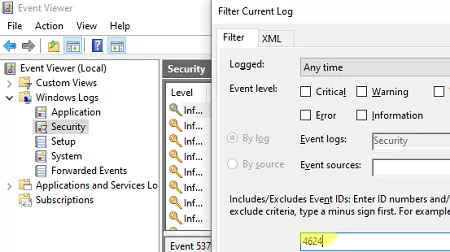
- Open the Event Viewer ( eventvwr.msc );
- Expand Windows Logs and select Security;
- Right-click it and select Filter Current Log;
- Enter the event ID 4624 in the box and click OK.
- Only user and system service logon events will be displayed with the description: An account was successfully logged on.
- The event description contains the name and domain of the user logged on to the computer:
New Logon: Security ID: WOSHUBa.muller Account Name: a.muller Account Domain: WOSHUB
Find some other useful Event IDs below:
| Event ID | Description |
| 4624 | A successful account logon event |
| 4625 | An account failed to log on |
| 4648 | A logon was attempted using explicit credentials |
| 4634 | An account was logged off |
| 4647 | User-initiated logoff |
The filtered event log will contain more than just local user login events. There are also events for network access to this computer (when you open shared files or use shared printers), events for running different services and scheduled tasks, etc. In other words, there are a lot of events that are not related to a local user logon.
The Logon Type code can be used to filter only the events of interactive user logins to a computer console (local). The table below shows Logon Type codes.
| Logon Type Code | Description |
|---|---|
| 0 | System |
| 2 | Interactive |
| 3 | Network |
| 4 | Batch |
| 5 | Service |
| 6 | Proxy |
| 7 | Unlock |
| 8 | NetworkCleartext |
| 9 | NewCredentials |
| 10 | RemoteInteractive |
| 11 | CachedInteractive |
| 12 | CachedRemoteInteractive |
| 13 | CachedUnlock |
Entries with Logon Type 10 or 3 appear in the event log when you connect remotely to the computer’s desktop using RDP. Find out more about how to parse RDP connection logs in Windows.
According to this table, a local user logon event must contain Logon Type: 2.
This event ID will also appear if you are using the automatic Windows logon.
To filter logon events by the Logon Type, it is better to use PowerShell.
Parsing User Logon Events with PowerShell
Suppose your task is to find out which users have recently logged on to this computer. We are only interested in the interactive logon events (using the computer console) with the LogonType =2 . We’ll use the Get-WinEvent cmdlet to select the events from the Event Viewer logs.
The following PowerShell script displays the logon history of users on the current computer and presents it as a graphical Out-GridView table.
If you want to select logon events for the last few days, you can add a pipe with the following condition:
You can use the Get-WinEvent cmdlet to get information from remote computers. For example, to get the user logon history from two remote computers, run this script:
‘mun-rds1’, ‘mun-rds2’ |
ForEach-Object Get-WinEvent -ComputerName $_ -FilterXml $query | Select-Object $properties
>
If the RPC protocol is not allowed, you can use the Invoke-Command PowerShell cmdlet to get data from remote computers:
Invoke-Command -ComputerName ‘mun-rds1’, ‘mun-rds2’
Choose one of the options below to continue

By clicking Register, you agree to our
Terms of Service.
- SOLUTIONS
- Event Registration
- Check-In & Pass
- Event CRM
- Mobile Live App
- Travel & Hospitality
- Data & Compliance
- In-Person Events
© InEvent, Inc. 2025
option negative positive
This site uses cookies to provide essential functionalit and, to help us understand how people find and use the site.
Select Accept to consent or Reject to decline non-essential cookies for this use.
https://woshub.com/view-local-logon-attempts-windows/
Author